
Coxwell Entrance Closure

MGH's main entrance on Coxwell Avenue is closed as the next phase of our redevelopment project begins. Patients and visitors can use the new temporary main entrance on Sammon Avenue between Coxwell Avenue and Knight Street. View our campus map.
Instructions for Joining Your Virtual Healthcare Appointment on Microsoft Teams

Your healthcare provider has scheduled a virtual appointment using Microsoft Teams. Please follow the steps below to join your appointment smoothly.  

BEFORE Your Appointment

  • Check Your Email – You will receive an email from your healthcare provider with a Microsoft Teams meeting link.
  • Prepare Your Device – You can join using a smartphone, tablet, or computer with internet access, a microphone, and a camera.
  • Test Microsoft Teams – Click on the "Join Meeting" as soon as you receive the invite the ensure it is working and you can connect
  • Test Your Connection – Ensure your internet connection is stable and test your microphone and camera before the appointment. 

JOINING THE APPOINTMENT

Click the links below to see instructions on how to join your Teams meeting by the device you are using 

During the appointment

  • Ensure you are in a quiet, well-lit space.
  • Speak clearly and ensure your microphone is on when talking.
  • Recording of the appointment is not permitted.
  • Privacy information can be found here.
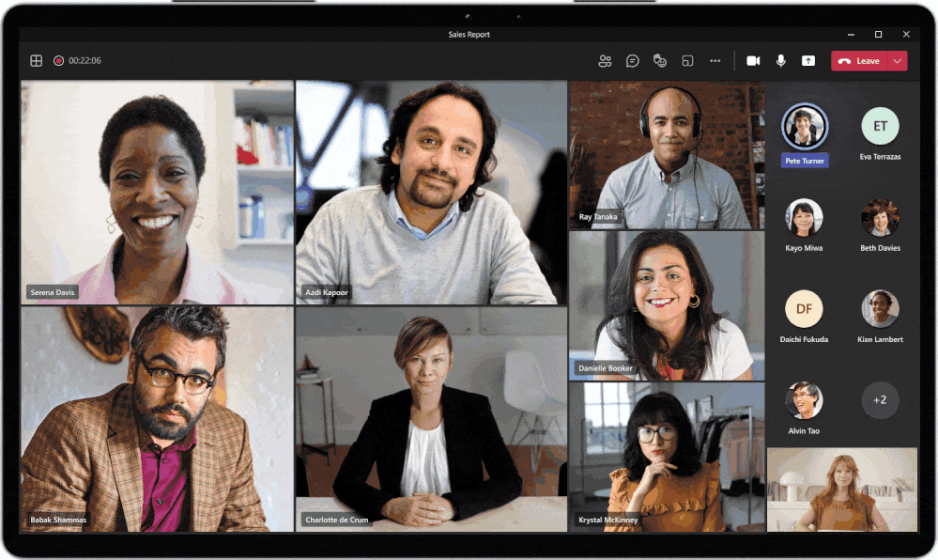
  • See the image below for an example of that the meeting will look like

Tablet mock up


Troubleshooting and support

  • Check Your Internet Connection
    • Make sure you’re connected to the internet (Wi-Fi or mobile data).
    • Try opening another website (like google.com) to check if your internet is working.
  • Use a Supported Device and Browser
    • You can use a smartphone, tablet, or computer.
    • Best browsers: Google Chrome or Microsoft Edge.
  • Open the Link from Your Appointment Email
    • Click the link as soon as you receive your email invite to ensure that your device will work
    • Join the meeting 15 minutes before your appointment time.
    • If prompted, click “Join on the web instead” or “Continue on this browser.”
  • Allow Camera and Microphone Access
    • You may see a message asking for permission to use your camera and microphone.
    • Click “Allow” so your doctor can see and hear you. 
  • Refresh or Restart If It Doesn’t Work
    • If the page gets stuck or doesn’t load:
    • Try refreshing the page.
    • Or close it and click the link again.
    • You can also restart your device and try again.
  • Still Not Working?
    • Call your care team or clinic office. If you do not have their number, you can contact Michael Garron Hospital locating at (416) 461-8272 and ask for the clinic you are seeing.
    • They may be able to help you by phone or reschedule the appointment.
  • After the Appointment:
    • Your healthcare provider will inform you about next steps or follow-ups.
    • If you have any technical issues, contact your healthcare provider’s office for support.  
Was this page helpful?